Authentication Setup
Link Apps Script to GCP, authorize the add-on, and configure OAuth
After deploying your add-on, complete these steps to enable authentication.
1. Link Apps Script to GCP
Link each Apps Script project to your GCP project:
yarn run open # Opens all Apps Script projects in browseror
yarn run open:sheets # Opens a specifig Apps Script project type in browserFor each project:
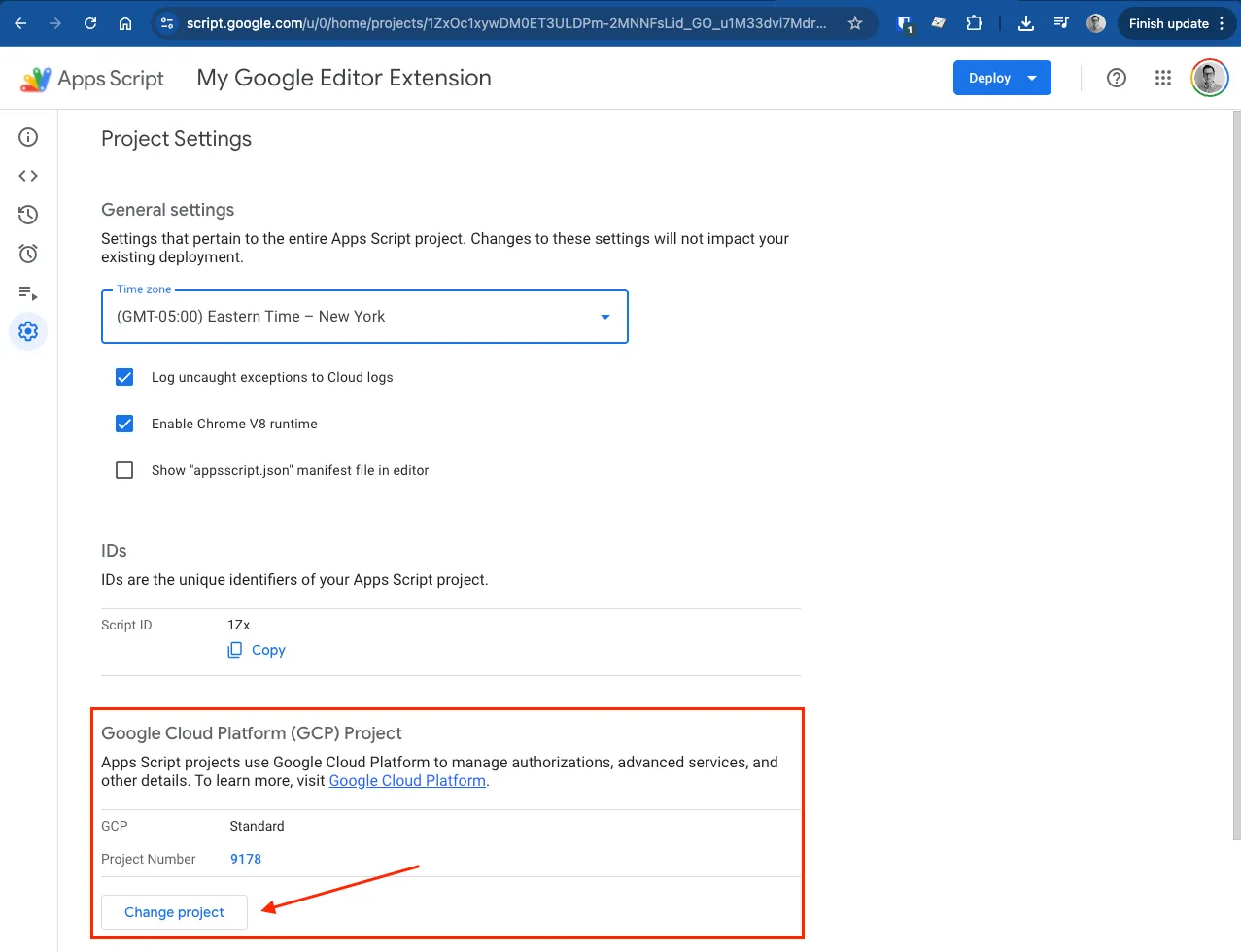
- Go to Extensions > Apps Script > Project Settings
- Under Google Cloud Platform (GCP) Project, click Change project
- Enter your Project Number
2. First Authorization
Open a Google document (Sheet, Doc, etc.) and run your add-on:
- Go to Extensions > Your Add-on Name > Sidebar
- Complete the OAuth consent flow
- The sidebar should load and show an authenticated UI
3. Get OAuth Client IDs
After authorization, Google creates OAuth Client IDs automatically:
- Go to APIs & Services > Credentials
- Find OAuth 2.0 Client IDs named "Apps Script"
- Copy each Client ID to your
.env.local:
GOOGLE_SHEETS_CLIENT_ID=xxx.apps.googleusercontent.com
GOOGLE_DOCS_CLIENT_ID=xxx.apps.googleusercontent.com
GOOGLE_SLIDES_CLIENT_ID=xxx.apps.googleusercontent.com
GOOGLE_FORMS_CLIENT_ID=xxx.apps.googleusercontent.com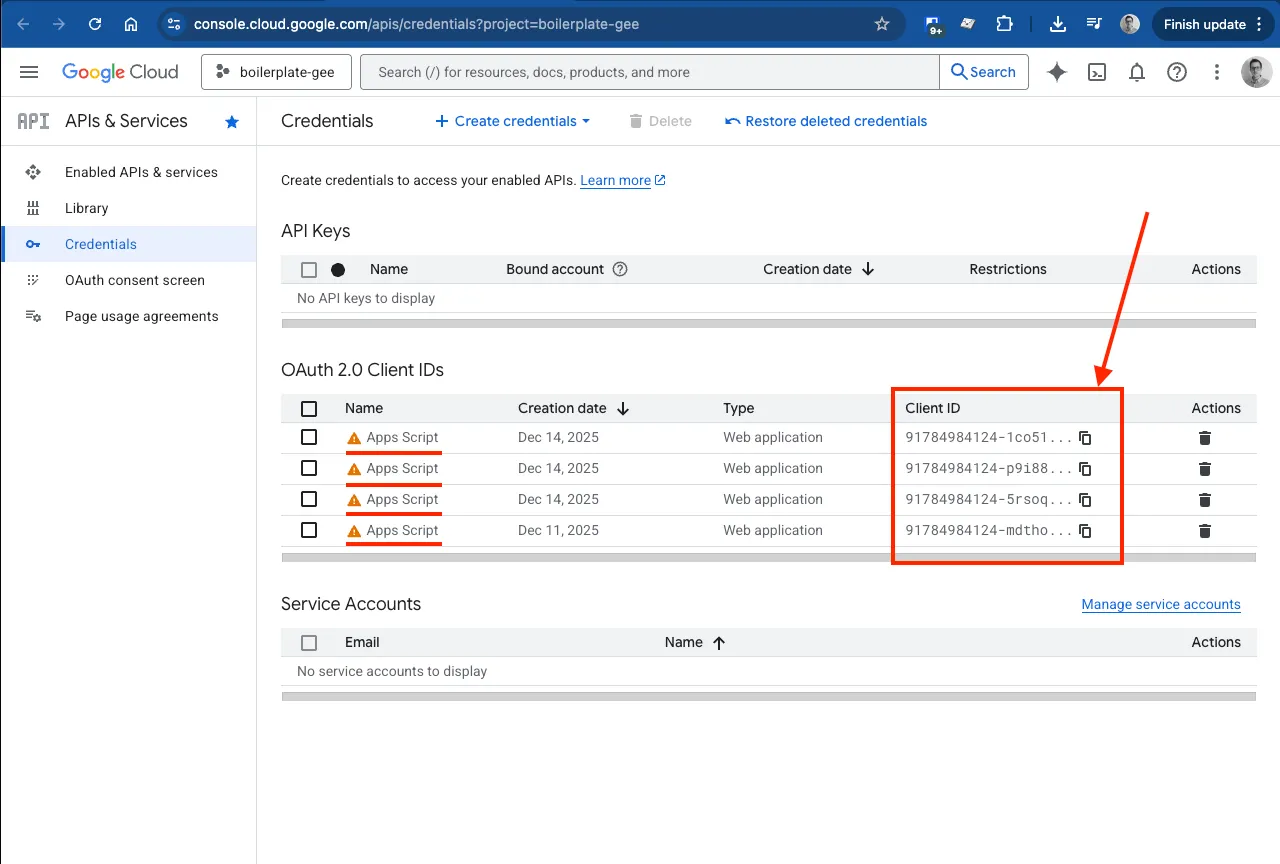
Only configure the addon types you selected during setup.
4. Configure Test Users
For development, add yourself as a test user:
- Go to Auth > Audience
- Add your Google account email as a test user
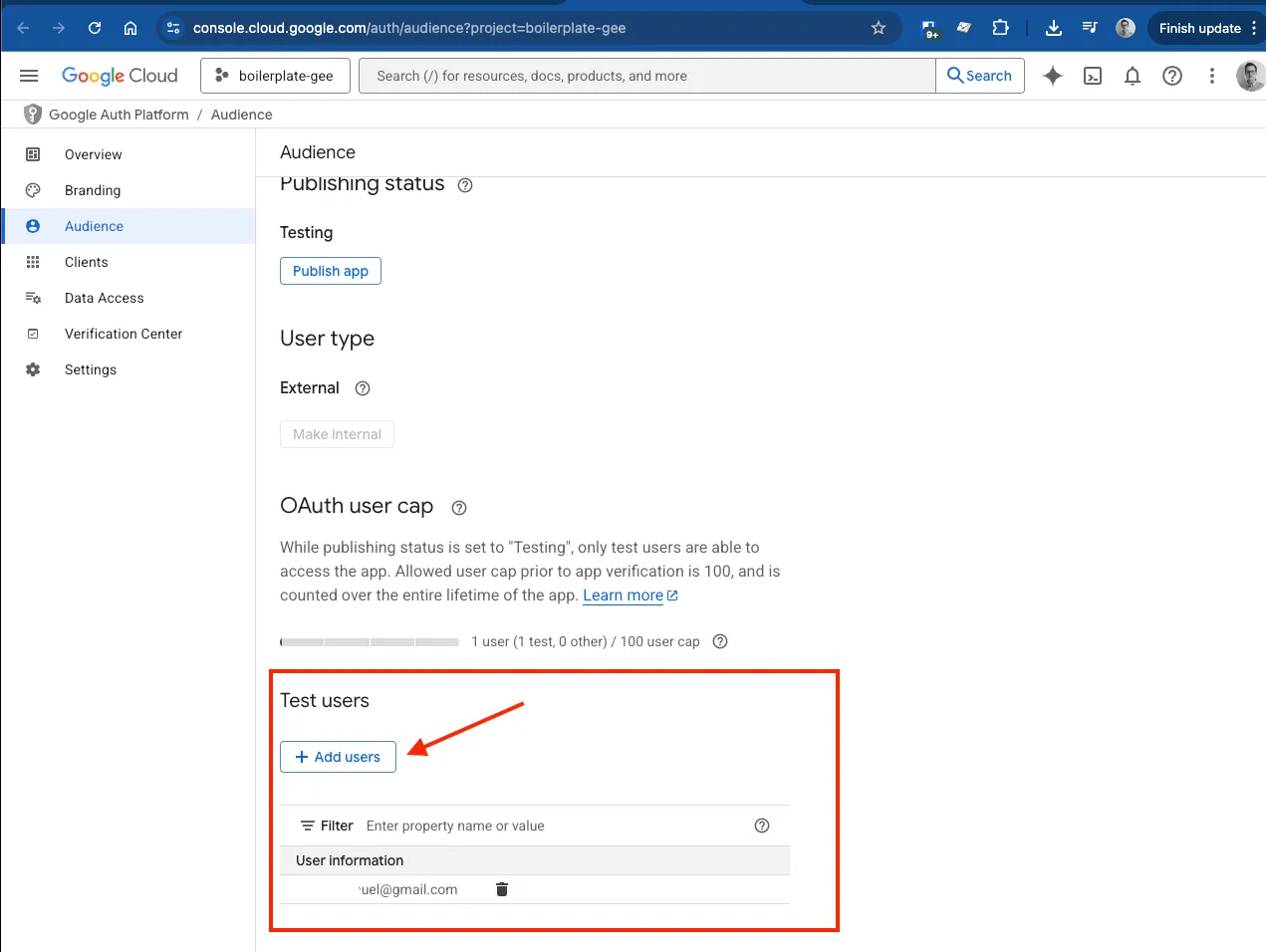
This is required because our Google Application is still not verified and in Testing state. For production or marketplace publish you need to set the audience to External and Verify the app.
What "Working" Looks Like
When authentication and supabase is configured correctly:
- Opening the sidebar triggers authentication automatically
- The
useAuthhook exchanges the Google Identity Token for a Supabase JWT - The user's name and email appear in the UI
- API calls to your backend succeed with the JWT
You can verify authentication by checking:
- Browser DevTools Network tab shows successful
/api/auth/googlerequests - The sidebar displays user information instead of an error state
- Supabase dashboard shows new rows in the
userstable
Troubleshooting
"Invalid or expired token" error
The OAuth Client ID in your .env.local doesn't match the one used by Apps Script. Double-check you copied the correct Client ID from the GCP Console.
"Email not verified" error
The Google account hasn't verified their email. This is uncommon but can happen with new accounts.
Sidebar shows loading forever
Check the browser console for errors. Common causes:
- Backend not running or not accessible
- CORS issues (backend must allow the Apps Script origin)
- Missing environment variables